Mastering Roku Remote Shortcuts for Enhanced User Experience

Mastering Roku Remote Shortcuts for Enhanced User Experience
admin 2023/10/20 17:25Exploring the Functionality of Quick and Personal Shortcut Buttons on Roku Remotes
Roku streaming devices have become an integral part of many households, offering a wide array of content at your fingertips. In this guide, we delve into the world of Roku remote shortcuts, specifically focusing on quick and personal shortcut buttons. While quick shortcuts provide easy access to popular streaming services, personal shortcuts empower you to customize your Roku experience. Let's navigate the realm of Roku remote functionality and discover how to make the most of these features.
Roku Quick Shortcut Buttons:
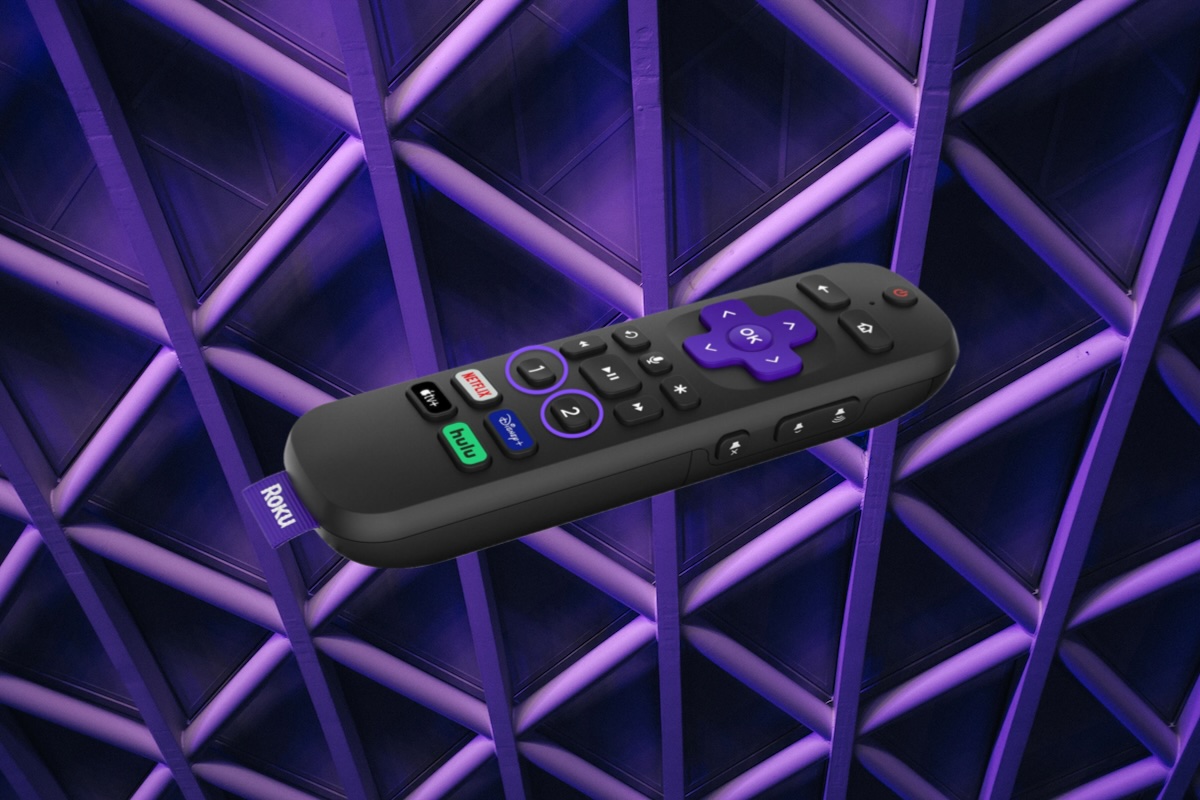
Roku's quick shortcut buttons are fixed buttons on the remote that provide direct access to popular streaming services like Netflix, Hulu, Disney+, and Amazon Prime Video.
These buttons are non-configurable, and the streaming services pay Roku for placement on them.
Users cannot reprogram these buttons to launch different applications or services.
Roku Personal Shortcut Buttons:
Roku offers some remotes with "personal" shortcut buttons labeled "1" and "2."
These personal shortcuts allow users to record specific voice commands, such as "Open HBO Max," and then execute these commands with a single button press.
These shortcuts are user-configurable, offering a level of customization.
Roku Players with Personal Shortcut Buttons:
Not all Roku remotes feature personal shortcut buttons. They typically come with more advanced Roku players like the Roku Ultra, Roku Streaming Stick 4K+ (distinct from the regular 4K version), and Roku Streambar Pro.
If your remote lacks these buttons and you desire them, you can purchase the Roku Voice Remote Pro for $30. This premium remote also includes features like a rechargeable battery, hands-free voice control, a headphone jack, and a voice-enabled lost-remote finder.
New or open box Roku Voice Pro remotes can often be found on Ebay at a discount! Learn more
How to Program Your Roku Remote With Personal Shortcut Buttons
Step 1: Access Personal Shortcut Instructions
To get started, quickly press one of the personal shortcut buttons to see on-screen instructions for creating your first shortcut. If you want to modify an existing personal shortcut, you can use the same steps outlined below.
Step 2: Access Shortcut Options
Press and hold the 1 or 2 button for 5 seconds.
The onscreen menu will display several shortcut options:
Step 3: Choose Your Shortcut
Channel: Launch your favorite channel (e.g., Netflix or Hulu)
The Roku Channel: Launch The Roku Channel
Live TV Guide: Launch Live TV Guide to quickly start browsing live streaming TV channels
Sleep Timer: If you have a TV powered by Roku OS, sleep timer lets you power off the TV screen after a designated amount of time
Closed Captions: Turn on closed captioning to display text captions.
Voice Command (or Last voice command): Save a voice command for specific tasks like searching for a movie or TV series, or playing a musical artist or genre. See the following section for more details.
Step 4: Set Your Personal Shortcut
Highlight the desired shortcut option and press OK button on Roku remote to set it.
Step 5: Activate Your Personal Shortcut
A personal shortcut is now assigned to the button. Simply press it any time you want your Roku device to perform the command. You can reassign personal shortcut buttons with the steps above as often as you like.
Roku streaming devices have become an integral part of many households, offering a wide array of content at your fingertips. In this guide, we delve into the world of Roku remote shortcuts, specifically focusing on quick and personal shortcut buttons. While quick shortcuts provide easy access to popular streaming services, personal shortcuts empower you to customize your Roku experience. Let's navigate the realm of Roku remote functionality and discover how to make the most of these features.
Roku Quick Shortcut Buttons:
Roku's quick shortcut buttons are fixed buttons on the remote that provide direct access to popular streaming services like Netflix, Hulu, Disney+, and Amazon Prime Video.
These buttons are non-configurable, and the streaming services pay Roku for placement on them.
Users cannot reprogram these buttons to launch different applications or services.
Roku Personal Shortcut Buttons:
Roku offers some remotes with "personal" shortcut buttons labeled "1" and "2."
These personal shortcuts allow users to record specific voice commands, such as "Open HBO Max," and then execute these commands with a single button press.
These shortcuts are user-configurable, offering a level of customization.
Roku Players with Personal Shortcut Buttons:
Not all Roku remotes feature personal shortcut buttons. They typically come with more advanced Roku players like the Roku Ultra, Roku Streaming Stick 4K+ (distinct from the regular 4K version), and Roku Streambar Pro.
If your remote lacks these buttons and you desire them, you can purchase the Roku Voice Remote Pro for $30. This premium remote also includes features like a rechargeable battery, hands-free voice control, a headphone jack, and a voice-enabled lost-remote finder.
New or open box Roku Voice Pro remotes can often be found on Ebay at a discount! Learn more
Step 1: Access Personal Shortcut Instructions
To get started, quickly press one of the personal shortcut buttons to see on-screen instructions for creating your first shortcut. If you want to modify an existing personal shortcut, you can use the same steps outlined below.
Step 2: Access Shortcut Options
Press and hold the 1 or 2 button for 5 seconds.
The onscreen menu will display several shortcut options:
Step 3: Choose Your Shortcut
Channel: Launch your favorite channel (e.g., Netflix or Hulu)
The Roku Channel: Launch The Roku Channel
Live TV Guide: Launch Live TV Guide to quickly start browsing live streaming TV channels
Sleep Timer: If you have a TV powered by Roku OS, sleep timer lets you power off the TV screen after a designated amount of time
Closed Captions: Turn on closed captioning to display text captions.
Voice Command (or Last voice command): Save a voice command for specific tasks like searching for a movie or TV series, or playing a musical artist or genre. See the following section for more details.
Step 4: Set Your Personal Shortcut
Highlight the desired shortcut option and press OK button on Roku remote to set it.
Step 5: Activate Your Personal Shortcut
A personal shortcut is now assigned to the button. Simply press it any time you want your Roku device to perform the command. You can reassign personal shortcut buttons with the steps above as often as you like.

Suggested Topics
admin
started Roku is doing what most of its rivals won’t
STREAM TV
admin
started YouTube’s living room ambitions pay off
At Ease
Want to read more? Browse all categories or view latest topics.