
Stop Letting Microsoft Ruin Your PC (Do This Immediately)

Stop Letting Microsoft Ruin Your PC (Do This Immediately)
admin 2026/06/29 18:11Your brand new, multi-thousand-dollar PC just booted up for the first time—and it's already shoving TikTok promos, Bing AI garbage, and literal spyware right into your Start menu.
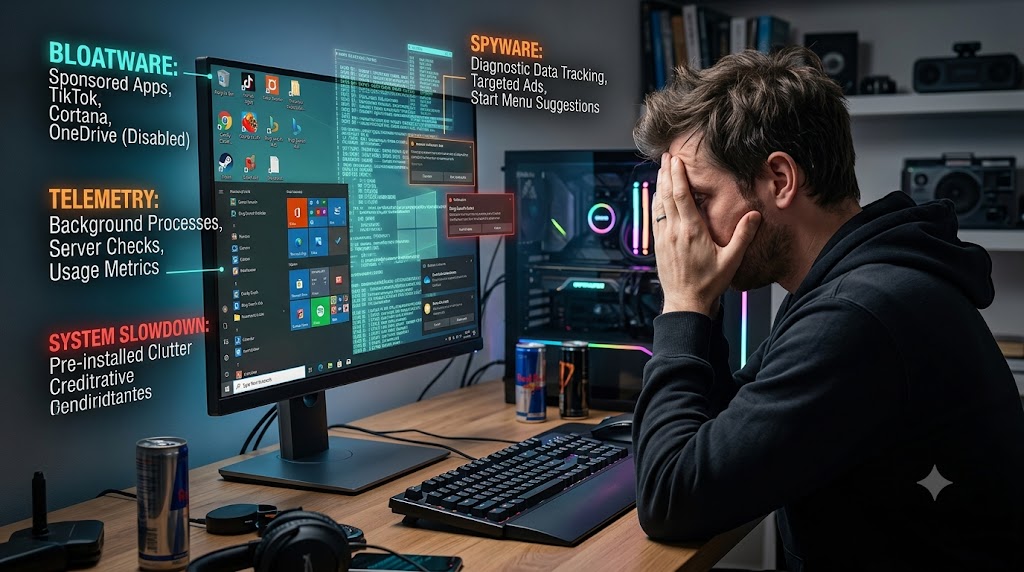
You didn't buy a personal computer just to own a glorified digital billboard. Yet, the moment you finish a clean installation of Windows, you are immediately greeted by an operating system that feels less like a tool and more like an ad-supported mobile game. From Candy Crush links baked into your taskbar to aggressive telemetry networks tracking your every click under the guise of "user experience," Microsoft has turned its flagship OS into an aggressive monetization machine.
The worst part? They hide the off-switches. Digging through the default Settings app won't save you; Microsoft purposefully buries the toggles to disable tracking, and completely locks you out of uninstalling core system bloat through standard menus. Your RAM, CPU cycles, and network bandwidth are being cannibalized by background services you never asked for and don't need.
But you don't have to just sit there and take it.
The global tech community reached its breaking point years ago, spawning a massive open-source movement dedicated to reclaiming user control. Developers have built powerful, automated scripts and standalone utilities that strip away the corporate garbage with surgical precision. If you want a clean, lightning-fast OS that actually respects your privacy, it's time to bypass the standard control panel and deploy the heavy artillery.
If you ever used a stripped down version of Windows on a corporate PC, you know what is possible. And we included a list of tools that make it easier for the average PC owner to do this on their own.
Here are a few incredibly popular community-driven apps and scripts used specifically for stripping bloatware, telemetry, and pre-installed clutter from Windows 10 and 11.
1.Win11Debloat (Windows10Debloater)
This is currently one of the most widely recommended, lightweight options on GitHub. It runs as a PowerShell script (often with a simple graphical interface wrapper) that allows you to easily tick off what you want to remove.
What it does: Nukes pre-installed tracking/telemetry, disables Bing search in the Start menu, removes pre-installed sponsored apps (like TikTok, Instagram, or specific games), and stops Cortana/Copilot integrations.
2.Chris Titus Tech's Windows Utility(CTT Tool)
An incredibly popular tool in the tech community managed by sysadmin and content creator Chris Titus.
How it works: You launch it directly via a single command in PowerShell, which pulls up a clean, comprehensive graphical interface.
What it does: It provides curated presets ("Tweaks") specifically designed to strip out Windows bloat, disable telemetry, set updates to security-only, and even let you install clean, open-source software in bulk.
Having personally used this, it made a dramatic difference in overall reduced bloat and snappier performance on a Windows 11 Work Station.
3.Winhance
Is a newer open-source app that has gained a following for making Windows feel more modular, and more like Linux.
What it does: It pulls all hidden Windows toggle settings, background services, advertising layouts, and default AppX packages into a single, clean checklist so you can strip everything out on a fresh install.
4. O&O AppBuster & O&O ShutUp10++
If you prefer a traditional, fully compiled standalone .exe application rather than a PowerShell script, O&O software is the gold standard.
AppBuster: Specifically targets hidden and native Microsoft store apps that Windows doesn't normally let you uninstall from the Control Panel.
ShutUp10++: Focuses entirely on privacy, letting you toggle off hundreds of hidden tracking and data-collection settings.
⚠️ Quick Warning: When using any debloating utility, always create a System Restore Point first. These tools can aggressively alter system registries and AppX packages, which can sometimes accidentally break core features like the Microsoft Store or Xbox login services if you check the wrong box. But used wisely, they can turn your PC into a lean mean and faster machine by stripping out all the added Windows bloat.
Explore More Tech News
You didn't buy a personal computer just to own a glorified digital billboard. Yet, the moment you finish a clean installation of Windows, you are immediately greeted by an operating system that feels less like a tool and more like an ad-supported mobile game. From Candy Crush links baked into your taskbar to aggressive telemetry networks tracking your every click under the guise of "user experience," Microsoft has turned its flagship OS into an aggressive monetization machine.
The worst part? They hide the off-switches. Digging through the default Settings app won't save you; Microsoft purposefully buries the toggles to disable tracking, and completely locks you out of uninstalling core system bloat through standard menus. Your RAM, CPU cycles, and network bandwidth are being cannibalized by background services you never asked for and don't need.
But you don't have to just sit there and take it.
The global tech community reached its breaking point years ago, spawning a massive open-source movement dedicated to reclaiming user control. Developers have built powerful, automated scripts and standalone utilities that strip away the corporate garbage with surgical precision. If you want a clean, lightning-fast OS that actually respects your privacy, it's time to bypass the standard control panel and deploy the heavy artillery.
If you ever used a stripped down version of Windows on a corporate PC, you know what is possible. And we included a list of tools that make it easier for the average PC owner to do this on their own.
Here are a few incredibly popular community-driven apps and scripts used specifically for stripping bloatware, telemetry, and pre-installed clutter from Windows 10 and 11.
1.Win11Debloat (Windows10Debloater)
This is currently one of the most widely recommended, lightweight options on GitHub. It runs as a PowerShell script (often with a simple graphical interface wrapper) that allows you to easily tick off what you want to remove.
What it does: Nukes pre-installed tracking/telemetry, disables Bing search in the Start menu, removes pre-installed sponsored apps (like TikTok, Instagram, or specific games), and stops Cortana/Copilot integrations.
2.Chris Titus Tech's Windows Utility(CTT Tool)
An incredibly popular tool in the tech community managed by sysadmin and content creator Chris Titus.
How it works: You launch it directly via a single command in PowerShell, which pulls up a clean, comprehensive graphical interface.
What it does: It provides curated presets ("Tweaks") specifically designed to strip out Windows bloat, disable telemetry, set updates to security-only, and even let you install clean, open-source software in bulk.
Having personally used this, it made a dramatic difference in overall reduced bloat and snappier performance on a Windows 11 Work Station.
3.Winhance
Is a newer open-source app that has gained a following for making Windows feel more modular, and more like Linux.
What it does: It pulls all hidden Windows toggle settings, background services, advertising layouts, and default AppX packages into a single, clean checklist so you can strip everything out on a fresh install.
4. O&O AppBuster & O&O ShutUp10++
If you prefer a traditional, fully compiled standalone .exe application rather than a PowerShell script, O&O software is the gold standard.
AppBuster: Specifically targets hidden and native Microsoft store apps that Windows doesn't normally let you uninstall from the Control Panel.
ShutUp10++: Focuses entirely on privacy, letting you toggle off hundreds of hidden tracking and data-collection settings.
⚠️ Quick Warning: When using any debloating utility, always create a System Restore Point first. These tools can aggressively alter system registries and AppX packages, which can sometimes accidentally break core features like the Microsoft Store or Xbox login services if you check the wrong box. But used wisely, they can turn your PC into a lean mean and faster machine by stripping out all the added Windows bloat.
Explore More Tech News
Last modified by admin 2026/06/29 18:13

Suggested Topics
5.8K
0
5.8K
0
6.4K
0
5.7K
0