
How to Make Your Own Raspberry Pi Mini NAS Server

How to Make Your Own Raspberry Pi Mini NAS Server
admin 2023/08/15 03:09Using a NAS (Network Attached Storage) offers a bunch of awesome perks.
It's like having your own digital hub at home. You can store and access your files, photos, videos, and more from anywhere on your network. No more hunting for USB drives or worrying about running out of space on your devices. Plus, it's super handy for sharing and collaborating with others.
Typical a store-bought NAS, like the excellent SYNOLOGY DiskStation DS223 is several hundred dollars. Then you also need to add the hard drives. Two drives are better than one, as it gives you extra storage or the ability to back up one drive to the other just in case one drive were to fail.
This video will walk you through how to build a NAS for home on the cheap using a Raspberry Pi, and SSD Hard Drive. A little backup plan is better than no backup plan at all. So while it may not have the bells and whistles of a higher-end Synology NAS, it will still get the job done.
We added a parts list that you can get off eBay. And any purchases you make help funnel a few cents our way at no extra cost. Plus, it helps keep ads off this site. We disdain ads just as much as you do. 😉
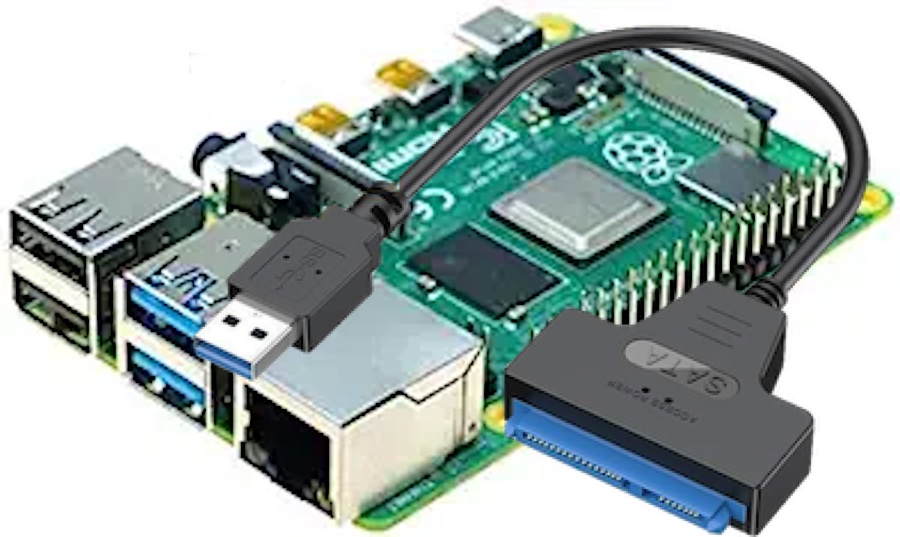
Raspberry Pi 4B: The Raspberry Pi 4B has an upgraded 1.8GHz Broadcom BCM2711(quad-core Cortex-A72)processor, onboard RAM up to 8GB, two new USB 3.0 ports, a full-speed Gigabit Ethernet interface, and a USB-C connector, which greatly improves system throughput and overall comprehensive performance.
Western Digital RED SSD: This leading-edge WD Red™ NAS hard drive is compatible with every NAS system to store your precious data. With drives up to 6TB, WD Red™ offers a wide array of storage for customers looking to build a NAS solution. Built and tested for personal and home NAS systems with up to 8-bays, these drives pack all the punch you need in one powerhouse unit for storing, archiving, and sharing. With WD Red™, you’re ready for what’s next.
4GB or Larger SD Card: The Samsung's 32GB EVO+ card is like the perfect match for your Raspberry Pi 4. It's speedy, checks all the size boxes, and doesn't cost an arm and a leg. If you're in a card dilemma, this one's a winner, hands down!
SATA to USB 3 Connector: An Inexpensive Yet Durable Hard ABS, Flexible PVC, Nickel Plated, Portable, SATA to USB-3 Adapter.
How to Video and Transcript:
This video will guide you through creating your mini NAS server. Here's what you'll need and the steps to follow:
- **Hardware**: You'll need to use a SATA SSD solid-state drive, a USB to SATA cable, and a Raspberry Pi 3. (Or Pi 4B for Better Performance $50)
- **Steps**:
- Connect the solid-state drive ($50) to the Raspberry Pi using the USB to SATA cable. Approx $5 with Free Shipping
- Install the operating system, Openmediavault. You can find the download link in the description.
- Use balenaEtcher to burn the downloaded file to an SD Card (at least 4 GB in size).
- Insert the SD Card into the Raspberry Pi.
- Connect the Raspberry Pi to your network and power it up.
- Find the Raspberry Pi's IP address using software like Advanced IP Scanner.
- Enter the IP address in a browser to access the login page.
- Use the default username: admin and password: openmediavault for wotto log in.
- Configure the NAS server:
- Check if the hard drive is detected.
- Wipe and format the hard drive.
- Mount the formatted hard drive.
- Create a new shared folder and assign read and write permissions to it.
- Enable the SMB service for Windows computers.
- Set up a static IP address for the NAS server to ensure stability.
- Access the shared folder from a Windows computer using the created account.
- If you want, map the shared folder on your Windows computer for easier access.
That's it! Enjoy your newly created mini NAS server. Thanks for watching, and don't forget to like and subscribe for more great stuff. Good luck!
It's like having your own digital hub at home. You can store and access your files, photos, videos, and more from anywhere on your network. No more hunting for USB drives or worrying about running out of space on your devices. Plus, it's super handy for sharing and collaborating with others.
Typical a store-bought NAS, like the excellent SYNOLOGY DiskStation DS223 is several hundred dollars. Then you also need to add the hard drives. Two drives are better than one, as it gives you extra storage or the ability to back up one drive to the other just in case one drive were to fail.
This video will walk you through how to build a NAS for home on the cheap using a Raspberry Pi, and SSD Hard Drive. A little backup plan is better than no backup plan at all. So while it may not have the bells and whistles of a higher-end Synology NAS, it will still get the job done.
We added a parts list that you can get off eBay. And any purchases you make help funnel a few cents our way at no extra cost. Plus, it helps keep ads off this site. We disdain ads just as much as you do. 😉
Raspberry Pi 4B: The Raspberry Pi 4B has an upgraded 1.8GHz Broadcom BCM2711(quad-core Cortex-A72)processor, onboard RAM up to 8GB, two new USB 3.0 ports, a full-speed Gigabit Ethernet interface, and a USB-C connector, which greatly improves system throughput and overall comprehensive performance.
Western Digital RED SSD: This leading-edge WD Red™ NAS hard drive is compatible with every NAS system to store your precious data. With drives up to 6TB, WD Red™ offers a wide array of storage for customers looking to build a NAS solution. Built and tested for personal and home NAS systems with up to 8-bays, these drives pack all the punch you need in one powerhouse unit for storing, archiving, and sharing. With WD Red™, you’re ready for what’s next.
4GB or Larger SD Card: The Samsung's 32GB EVO+ card is like the perfect match for your Raspberry Pi 4. It's speedy, checks all the size boxes, and doesn't cost an arm and a leg. If you're in a card dilemma, this one's a winner, hands down!
SATA to USB 3 Connector: An Inexpensive Yet Durable Hard ABS, Flexible PVC, Nickel Plated, Portable, SATA to USB-3 Adapter.
How to Video and Transcript:
This video will guide you through creating your mini NAS server. Here's what you'll need and the steps to follow:
- **Hardware**: You'll need to use a SATA SSD solid-state drive, a USB to SATA cable, and a Raspberry Pi 3. (Or Pi 4B for Better Performance $50)
- **Steps**:
- Connect the solid-state drive ($50) to the Raspberry Pi using the USB to SATA cable. Approx $5 with Free Shipping
- Install the operating system, Openmediavault. You can find the download link in the description.
- Use balenaEtcher to burn the downloaded file to an SD Card (at least 4 GB in size).
- Insert the SD Card into the Raspberry Pi.
- Connect the Raspberry Pi to your network and power it up.
- Find the Raspberry Pi's IP address using software like Advanced IP Scanner.
- Enter the IP address in a browser to access the login page.
- Use the default username: admin and password: openmediavault for wotto log in.
- Configure the NAS server:
- Check if the hard drive is detected.
- Wipe and format the hard drive.
- Mount the formatted hard drive.
- Create a new shared folder and assign read and write permissions to it.
- Enable the SMB service for Windows computers.
- Set up a static IP address for the NAS server to ensure stability.
- Access the shared folder from a Windows computer using the created account.
- If you want, map the shared folder on your Windows computer for easier access.
That's it! Enjoy your newly created mini NAS server. Thanks for watching, and don't forget to like and subscribe for more great stuff. Good luck!
Last modified by admin 2023/08/15 03:14

Suggested Topics
5.5K
0
admin
started The Cable TV Business Is Dying. Is It Worth Saving?
At Ease
admin
started TV OS battle brews, do consumers care?
At Ease